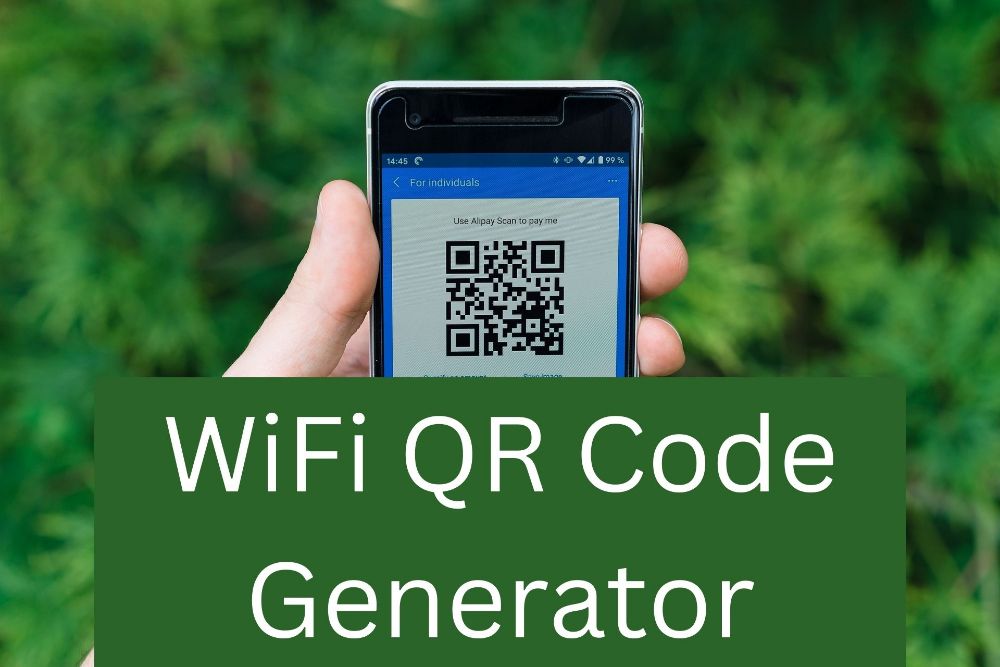
WiFi QR Code Generator
Create a QR code to share your WiFi without typing the password.
The Age-Old WiFi Struggle
Picture this scenario: You have guests over at your house. Everyone is settling in, having a good time, and then someone asks the inevitable question:
“Hey, what’s the WiFi password?”
You pause. You try to remember it. Is it on the back of the router? You crawl under the desk, squinting at a sticker with tiny text. You start reading it out loud: “Capital A, small b, number 4, dollar sign…”
Your guest types it in. “It says incorrect password,” they reply.
You sigh and repeat the process. “No, that was a zero, not the letter O!”
Does this sound familiar? This frustrating dance happens in homes, cafes, offices, and hotels every single day. But what if there was a better way? What if you could share your WiFi without ever speaking a word or typing a single character?
Welcome to the Free WiFi QR Code Generator. This tool allows you to convert your WiFi network name and password into a scannable QR code. Your guests simply point their phone cameras at the code, and Boom! They are instantly connected.
No typing. No errors. No revealing your secret password.
How to Use the WiFi QR Code Generator (Step-by-Step)
Using our tool is as easy as 1-2-3. You don’t need to be a tech expert to set this up. Follow these simple steps to create your personalized WiFi access card.
Step 1: Enter Your Network Name (SSID)
The SSID is the name of your WiFi network that you see on your phone when searching for internet.
- Tip: This is case-sensitive. If your WiFi is named “Home_WiFi”, you must type it exactly like that. Typing “home_wifi” will not work.
Step 2: Enter Your Password
Type your WiFi password in the second box.
- Security Note: Don’t worry, your password is safe. This tool works locally in your browser and does not send your data to any server.
Step 3: Select Encryption Type
This tells the QR code what kind of security your router uses.
- WPA/WPA2: Select this if you have a password. (99% of home networks use this).
- WEP: Select this only if you are using a very old router.
- No Password: Select this if your WiFi is open and doesn’t require a password.
Step 4: Generate & Print
Click the “Generate QR Code” button. Your unique code will appear instantly. You can now scan it directly from the screen to test it.
Want to put it on your wall? Click the “Print This Card” button to get a clean, professional-looking WiFi card that you can frame or stick on your fridge.
Why You Should Use a WiFi QR Code
In 2025, convenience is king. Here is why switching to a QR code is better than the traditional method of sharing passwords.
1. Zero Typing Errors
WiFi passwords are meant to be secure, which often means they are long, complex strings of random characters (e.g., Xy7#b9@Lm). Typing this on a small mobile keyboard is prone to errors. A QR code eliminates human error completely.
2. Enhanced Security
When you read your password out loud, anyone in the room (or next door) can hear it. By using a QR code, you share access digitally without ever vocalizing your private credentials.
3. Professionalism for Businesses
If you own a coffee shop, restaurant, or salon, having a printed WiFi QR code on the table or counter looks incredibly professional. It saves your staff from answering the same question 50 times a day, allowing them to focus on serving customers.
4. Great for Airbnb & Guests
If you run an Airbnb or guest house, a framed WiFi QR code is a “Superhost” touch. It makes your guests feel welcome and tech-savvy immediately upon arrival.
The Technology Behind It: How Does It Work?
You might be wondering, “Is this magic? How does a picture connect me to the internet?”
It is not magic; it is simply a standardized data format known as the MECARD or WIFI Scheme. When you enter your details into our tool, we convert them into a text string that looks something like this:
WIFI:S:MyNetworkName;T:WPA;P:MySecretPassword;;
- S: Represents the SSID (Name).
- T: Represents the Encryption Type (WPA/WEP).
- P: Represents the Password.
When a smartphone camera scans this QR code, the operating system (iOS or Android) recognizes this specific format. It automatically interprets the instruction as: “Hey, search for a network named ‘MyNetworkName’ and try to connect using ‘MySecretPassword’.”
This entire process happens offline on your device, making it incredibly fast and efficient.
Creative Ways to Display Your WiFi QR Code
Once you have generated your code using our tool, don’t just leave it on the screen. Here are some creative ways to use it:
1. The “Fridge Magnet” Approach
Print the code, laminate it, and stick it on your refrigerator. This is the central hub of most homes, making it easy for family and friends to find.
2. The Living Room Frame
Buy a small, aesthetic photo frame (4×6 inches). Print the QR code on nice cardstock paper and frame it. Place it on your coffee table or TV stand. It serves as both a utility and a modern decor piece.
3. The Guest Room Welcome Kit
If you have a dedicated guest room, place a printed card with the WiFi QR code on the bedside table along with a bottle of water and towels. Your guests will love the attention to detail.
4. Business Counters & Menus
For business owners, print the QR code on a sticker and place it on every table or at the checkout counter. You can even add it to the bottom of your food menu.
Is It Safe? Privacy Concerns Addressed
In an era of digital privacy, it is natural to be cautious about where you type your passwords.
Is this tool safe to use?
YES. Absolutely.
Here is why:
- Client-Side Processing: This tool is built using JavaScript that runs entirely inside your web browser. Your WiFi password is never sent to our servers, never stored in a database, and never seen by us.
- No Tracking: We do not track your SSID or location.
- Static Code: The QR code generated is a direct translation of your text. It does not contain any malicious links or redirects. It simply contains your network credentials.
You can verify this by turning off your internet connection (Airplane Mode) and using the tool. You will see that it still works perfectly because it doesn’t need to talk to any server!
Troubleshooting: Why Won’t My QR Code Work?
If you generated a code but your phone isn’t connecting, check these common issues:
1. Case Sensitivity (Most Common Error)
WiFi names and passwords are case-sensitive.
- “MyWiFi” is different from “mywifi”.
- “Password123” is different from “password123”.
Ensure you typed capital and small letters exactly as they appear on your router settings.
2. Hidden Networks
Is your WiFi network “Hidden” (meaning it doesn’t show up in the search list unless you type the name)?
If yes, standard QR codes might struggle. You need to ensure your phone knows it is looking for a hidden network. However, for 99% of users, this is not an issue.
3. Wrong Encryption Type
If you selected “WEP” but your router uses “WPA2” (which is standard), the connection will fail. When in doubt, always leave the setting on WPA/WPA2.
4. Old Smartphone Cameras
Most modern phones (iPhone running iOS 11+ and Android 10+) have built-in QR scanners in their camera apps. If you have a very old phone, you might need to download a third-party “QR Code Scanner” app from the App Store or Play Store.
Frequently Asked Questions (FAQs)
Q1: Does this work for both iPhone and Android?
Ans: Yes! Both iOS (iPhone/iPad) and Android devices have native support for WiFi QR codes. Just open the camera app and point it at the code. A notification will pop up asking if you want to join the network.
Q2: Does the QR code expire?
Ans: No. A QR code is just static image data. It will work forever—or at least until you change your WiFi password. If you change your password, you will need to generate a new QR code.
Q3: Can I save the QR code image?
Ans: Yes. You can right-click the image (or long-press on mobile) and select “Save Image.” You can also use the “Print” button in our tool to get a printer-friendly version instantly.
Q4: Can I use this for my 5Ghz and 2.4Ghz bands?
Ans: Yes. If your router has separate names for 5Ghz and 2.4Ghz (e.g., “HomeWiFi_5G” and “HomeWiFi”), you will need to create a separate QR code for each one. If they share the same name, one code works for both.
Q5: Is this service free?
Ans: Yes, the FreeOnlineWebTool WiFi Generator is 100% free to use. There are no limits on how many codes you can create.
Conclusion
Gone are the days of hunting for sticky notes or reciting complicated passwords. With the WiFi QR Code Generator, connecting to the internet is as simple as taking a photo.
It is faster, safer, and makes you look like a tech genius. Whether you are managing a busy office, running a café, or just want to make life easier for your friends at home, this tool is the ultimate solution.
Try it now! Scroll up, enter your details, and print your very own WiFi Card today.